

Sophos Firewall
Installation User Guide
Or scroll down for web guide
Video guide playlist of installation
The Components
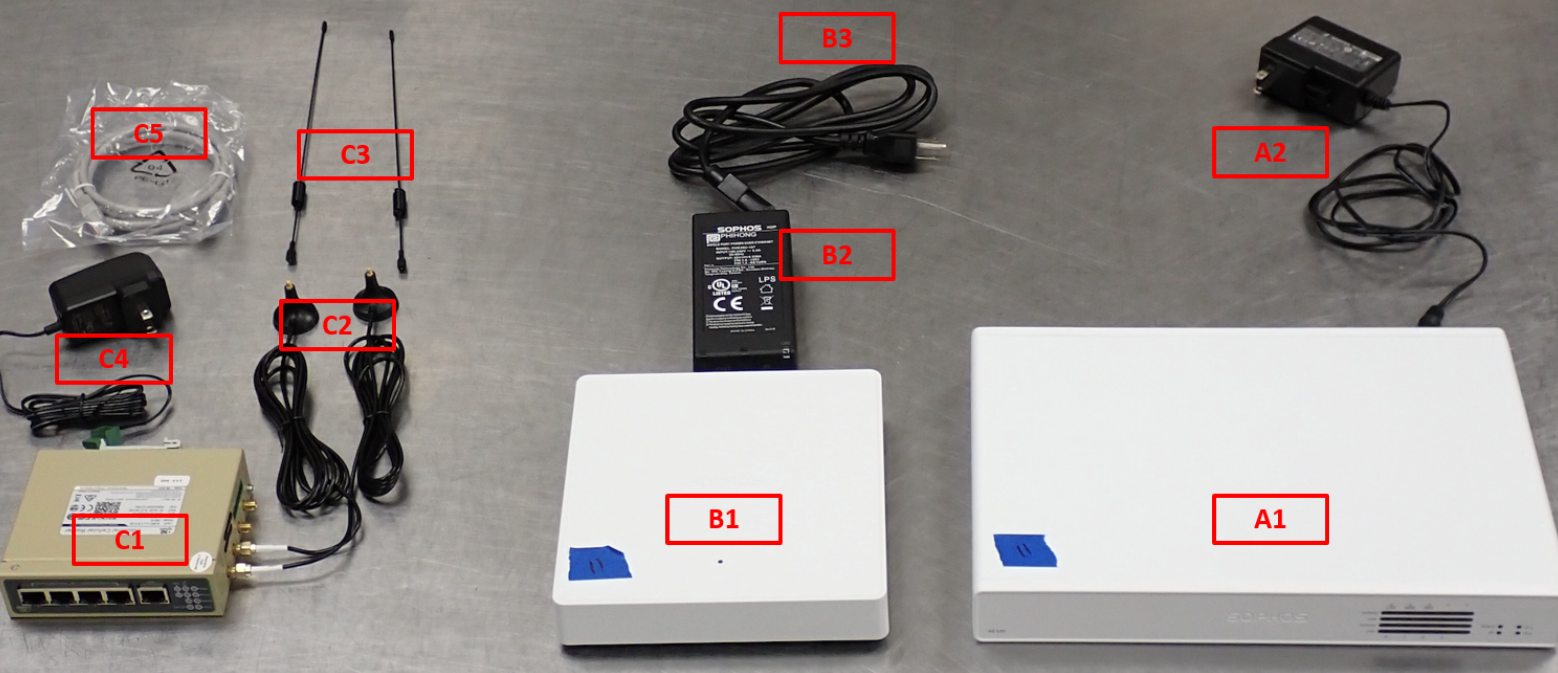
This is all of the equipment shipped to the store
Step 1
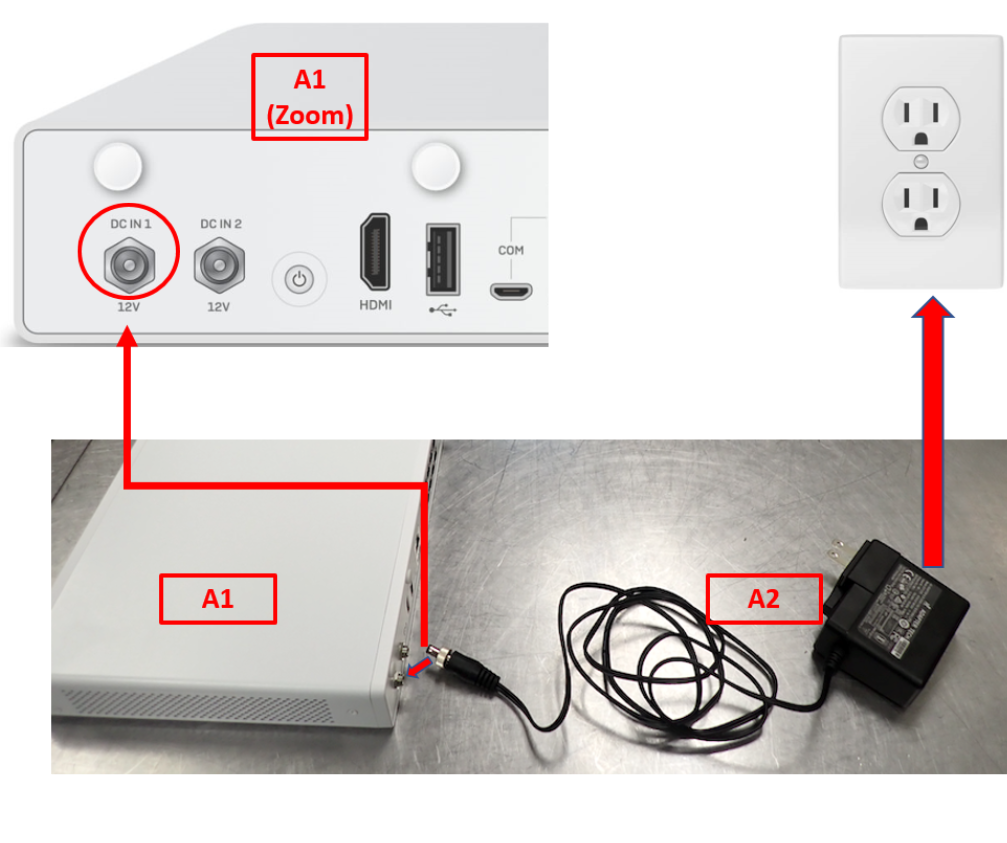
Take the pronged-end of Plug (A2) and plug in to a wall outlet. Take the other end of Plug (A2) and plug in to Device (A1) in left-side port labeled “DC IN 1” and screw it in until secured tightly.
Lights on front of Device (A1) should now be blinking as well as ports on the back.
Step 2
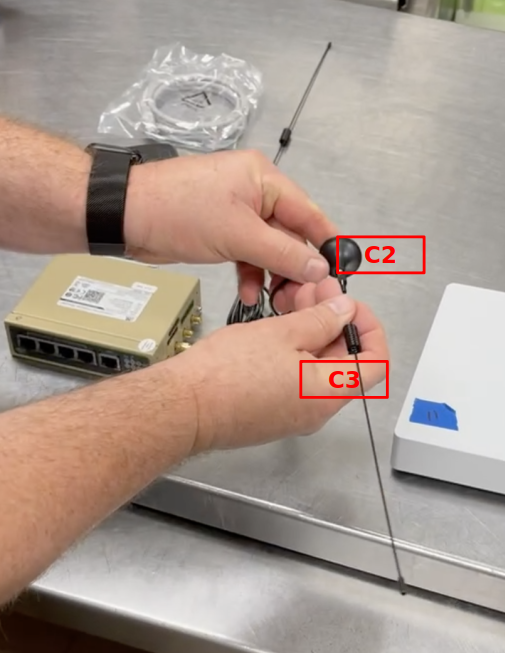
1:) Insert antenna (C3) into its base (C2)
2:) Slightly rotate the movable metal part until it cannot be rotated
3:) NOTE: Do not forcibly screw the antenna by holding the black rubber lining
4:) Repeat steps for second antenna

Step 3
1:) Plug green end of C4 into green port of C1
2:) Plug other end of C4 into wall outlet
Step 4
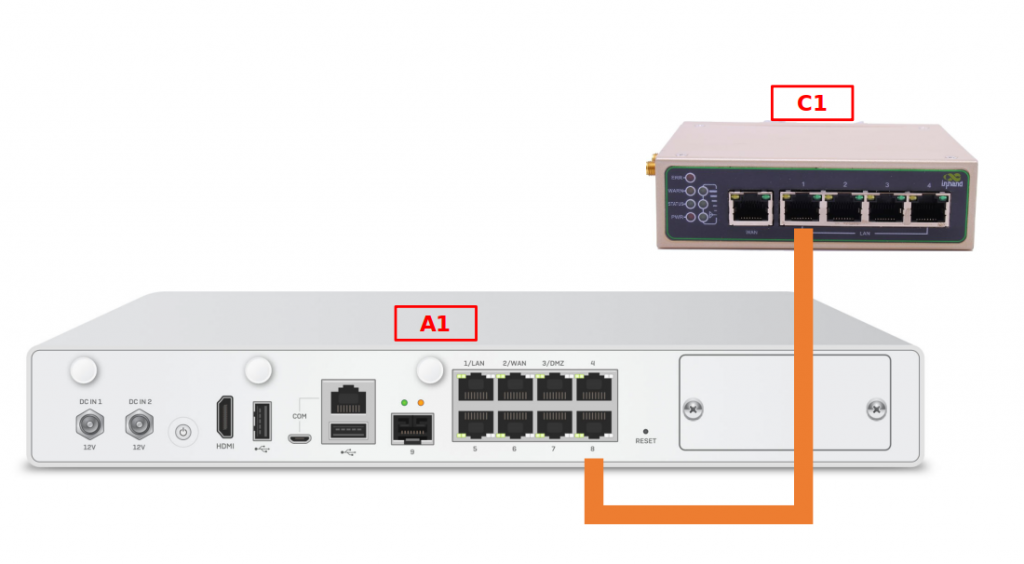
Plug ethernet cable into Port labeled “1” on device C1
Plug other side of ethernet cable into Port labeled “8” on device A1
Step 5
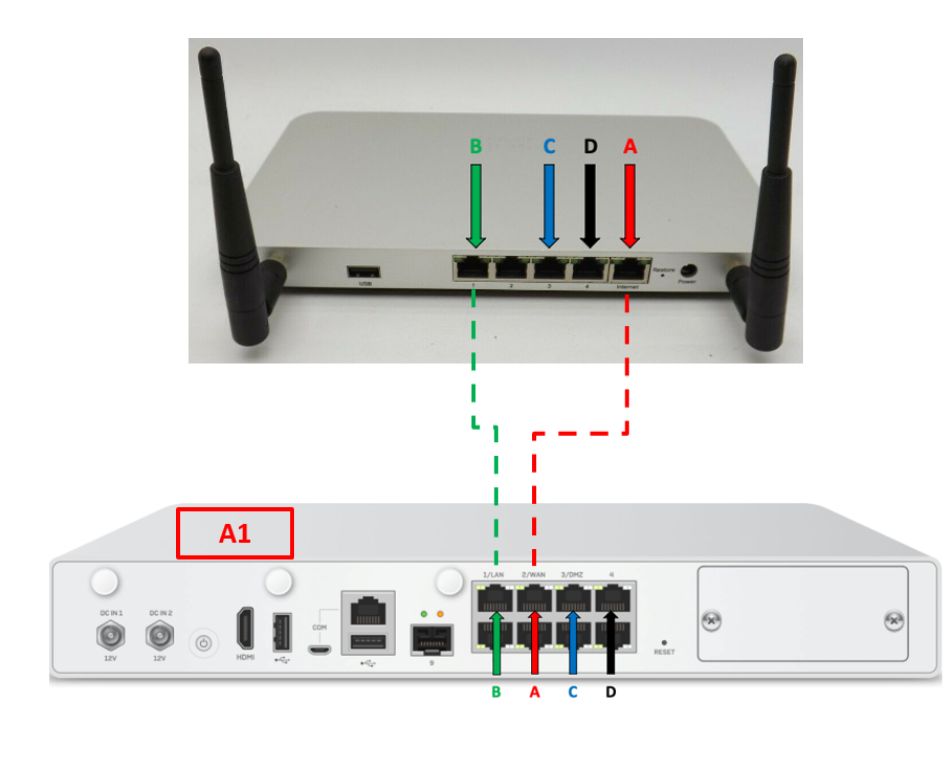
The following steps are to be performed in the order they are outlined below (A to A, B to B). The diagram is color and label coordinated to represent where each cable is moving. Your cables may be different colors.
1:) Take ethernet cable out of Port labeled “Internet” (Labeled ”A” in top diagram)
2:) Plug cable A into Port on Device A1 labeled “2/WAN” (Labeled “A” in bottom diagram)
3″) Take ethernet cable out of Port labeled “1” (Labeled ”B” in top diagram)
4:) Plug cable B into Port on Device A1 labeled “1/LAN” (Labeled “B” in bottom diagram)
Wait!
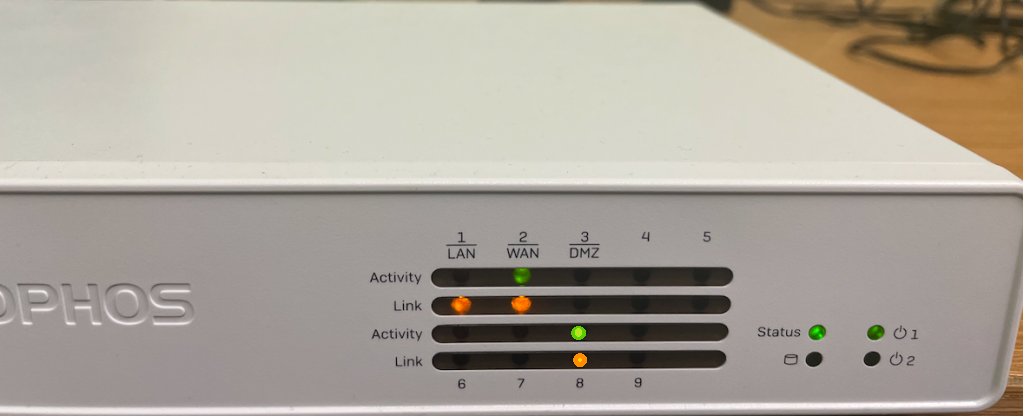
Within 10 minutes, the Sophos Firewall (A1)’s lights should look like the image below. If, after 10 minutes, they do not look like the image, please contact support.
Step 6
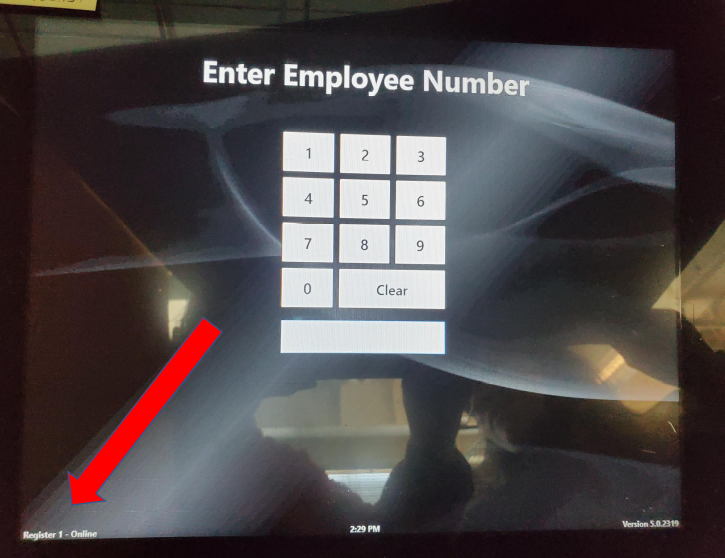
Check Register 1
Please check that Register 1 shows this on its screen
Step 7
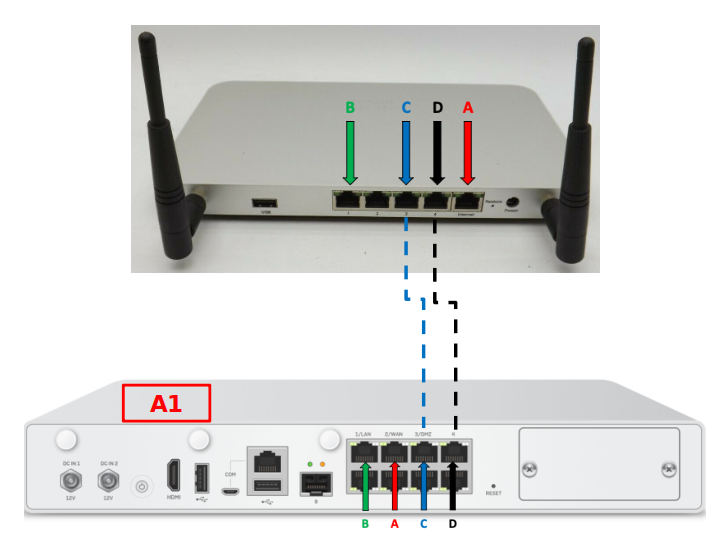
The following steps are to be performed in the order they are outlined below (C to C, D to D). The diagram is color and label coordinated to represent where each cable is moving. Your cables may be different colors.
1:) Take ethernet cable out of Port labeled “3” (Labeled ”C” in top diagram)
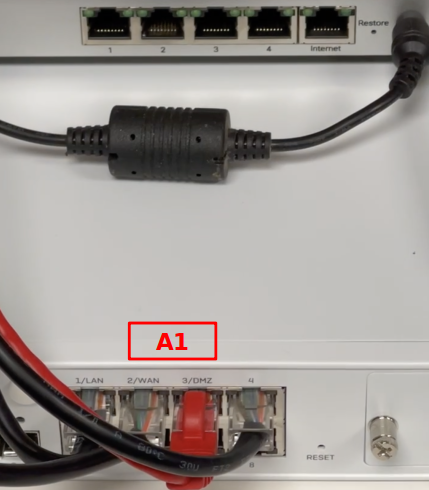
2:) Plug cable C into Port on Device A1 labeled “3/DMZ” (Labeled “C” in bottom diagram)
3:) Take ethernet cable out of Port labeled “4” (Labeled ”D” in top diagram)
4:) Plug cable D into Port on Device A1 labeled “4” (Labeled “D” in bottom diagram)
Double Check
Once complete, Device A1 should look like this
Step 8
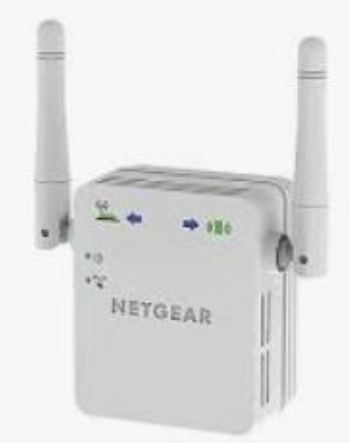
Locate and unplug this device if you have one in the store.
Step 9
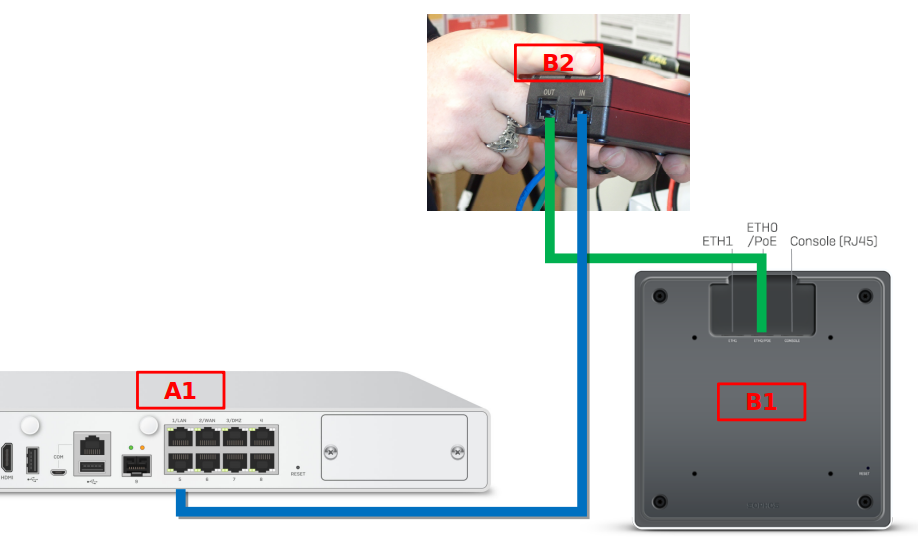
1:) Plug ethernet cable into Device B2 port labeled “OUT”
2:) Plug other end of ethernet cable into Device B1 port labeled “ETH0/POE”
3:) Plug additional ethernet cable into Device B2 port labeled “IN”
4:)Plug other end of the second ethernet cable into Device A1 port labeled “5”
Step 10
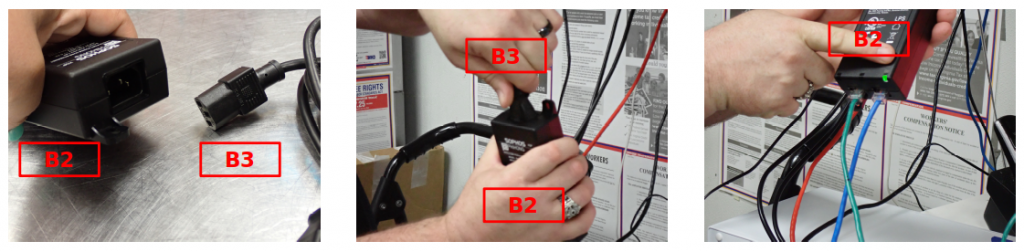
1:) Plug cord (B3) that came with device B2 into the other side of device B2
2:) Plug other end of cord (B3) into wall outlet
3:) Confirm solid green light located near label ”PORT ON” on device B2
Double check
Ports labeled “1/LAN”, “2/WAN”, “3/DMZ”, “4”, “5” and “8” on device A1 should have cable connections and lights blinking
Device B1 should have a solid green light on the top
Port labeled “1” on device C1 should be blinking

Check the registers, credit card processing machines and printers to ensure all are online and
working as expected. If there are any issues noted at this time with these please contact Five Guys
Help Desk through the normal channels. Please let them know you are doing the Firewall Migration.
Step 11
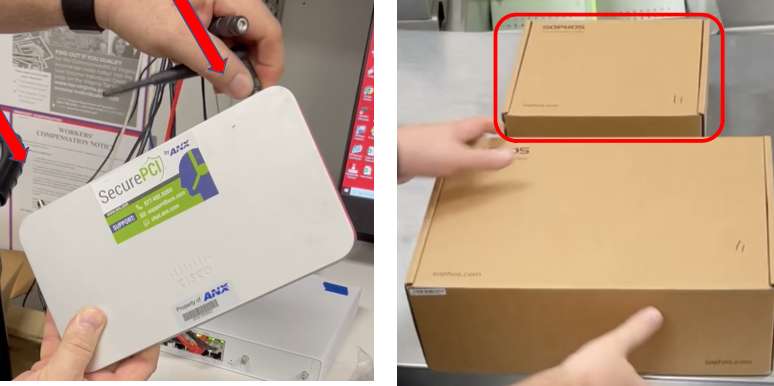
1:) Unscrew Antennas from the old device
2:) Unplug old device from wall outlet
3:) Place old device, antennas, and wall plug in the smaller Sophos box
Step 12
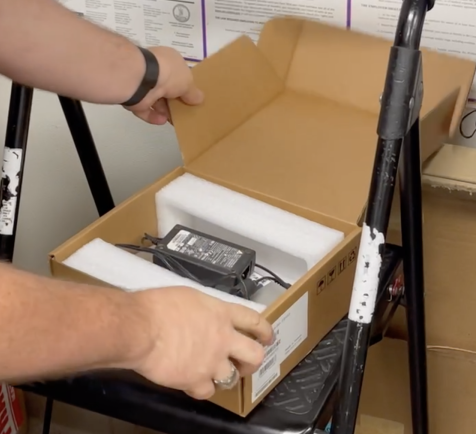
Check that the contents of the box to be shipped are correct
1:) Old device
2:) Antennas (2)
3:) Power Cable
Use the shipping label emailed to the GM to ship the contents back
Having an issue?
Join Sophos office hours for service support between 8AM and 9AM ET to troubleshoot